All file downloads on Datafordeleren follow the same general structure, although the portal documentation is more complex than most student projects need.
Official reference: https://confluence.sdfi.dk/pages/viewpage.action?pageId=151999753
For many student projects, the practical starting point is to download the current full export or the newest relevant extract.
When to use file download
Use file download when:
- you need a full dataset snapshot
- you want to work locally without repeated API calls
- the service is easier to consume as a package than as a live endpoint
- you need to join multiple normalized entities offline
Use GraphQL instead when you have strict filters and want smaller, targeted extracts.
Machine-readable companion
AI general URL pattern (standard entity total downloads)
For most standard entity-level total downloads, AI agents can use this generic template:
https://api.datafordeler.dk/FileDownloads/GetFile?Register={REGISTER}&LatestTotalForEntity={ENTITY}&type={TYPE}&format={FORMAT}&apiKey={API_KEY}
Where:
{REGISTER}is the register code (for exampleCVR,DAGI,DAR,MAT){ENTITY}is the entity name for that register{TYPE}is one ofcurrent,temporal,bitemporal{FORMAT}is file format
Example (CVR temporal):
https://api.datafordeler.dk/FileDownloads/GetFile?Register=CVR&LatestTotalForEntity=CVREnhed&type=temporal&format=CSV&apiKey=xxxx
Format policy
For SemanticGIS automation, use:
- GPKG if available for the entity
- Otherwise CSV
Rationale: entity-level JSON downloads become very large and are less efficient for local reconstruction workflows.
Important constraints
- availability of format and type can vary by register and entity
- a safe workflow is to discover availability first via
GetAvailableFileDownloads, then callGetFile - some registers have special behavior (for example CVR)
Shared model assumptions
Most Grunddatamodellen datasets share common temporal semantics and may support different download modes:
- Current: latest active state
- Temporal: valid-time history
- Bitemporal: valid-time + registration-time history
See:
Manual download
To download data from Datafordeleren, you need an API key.
Access setup reference: https://confluence.sdfi.dk/display/DML/IT-systemer
When you have a key:
- Go to https://datafordeler.dk/dataoversigt/
- Choose the collection/register you want to download from.
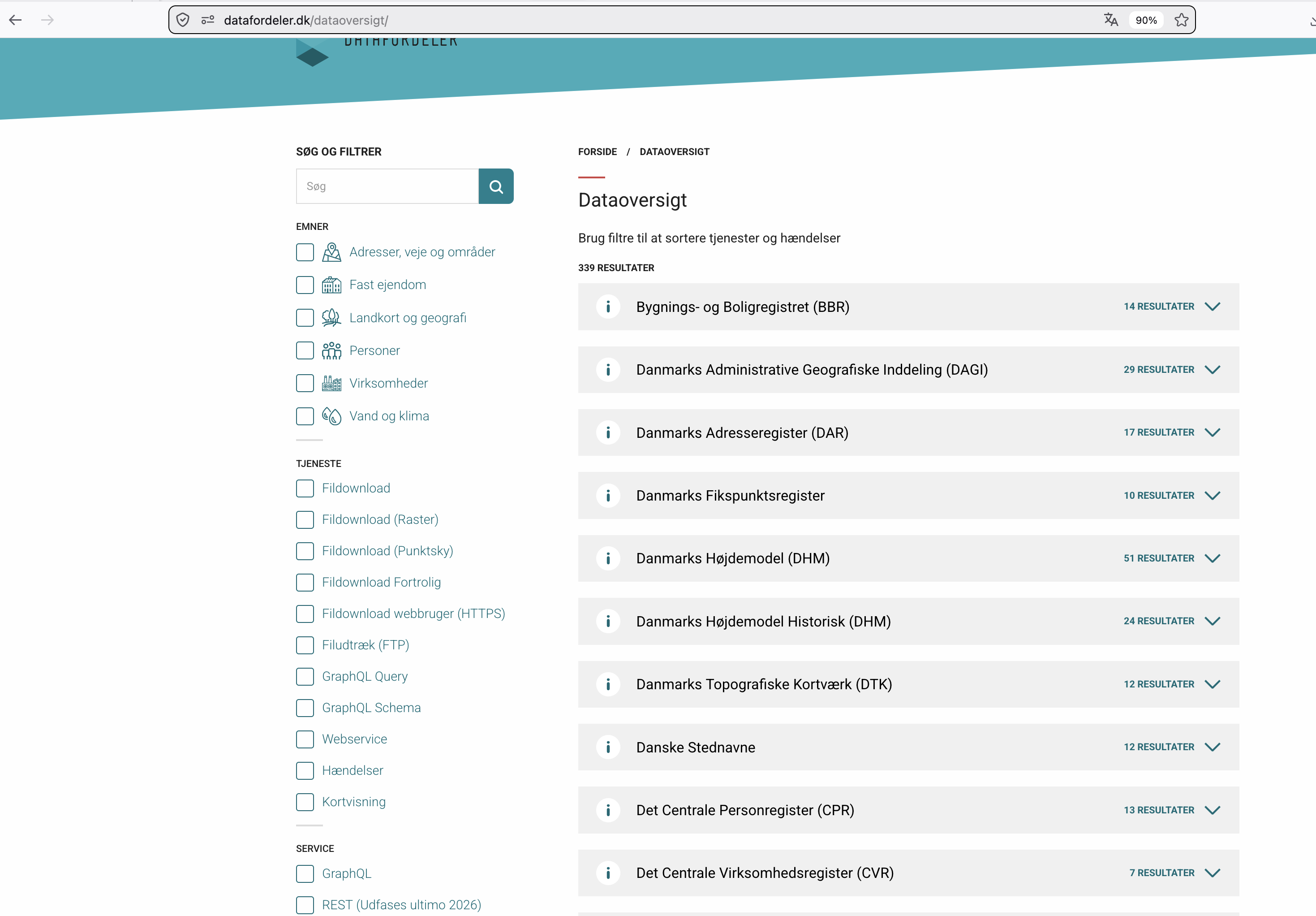
- Expand the register and find the FilDownload section.
- Click the green button OPRET FILDOWNLOAD.
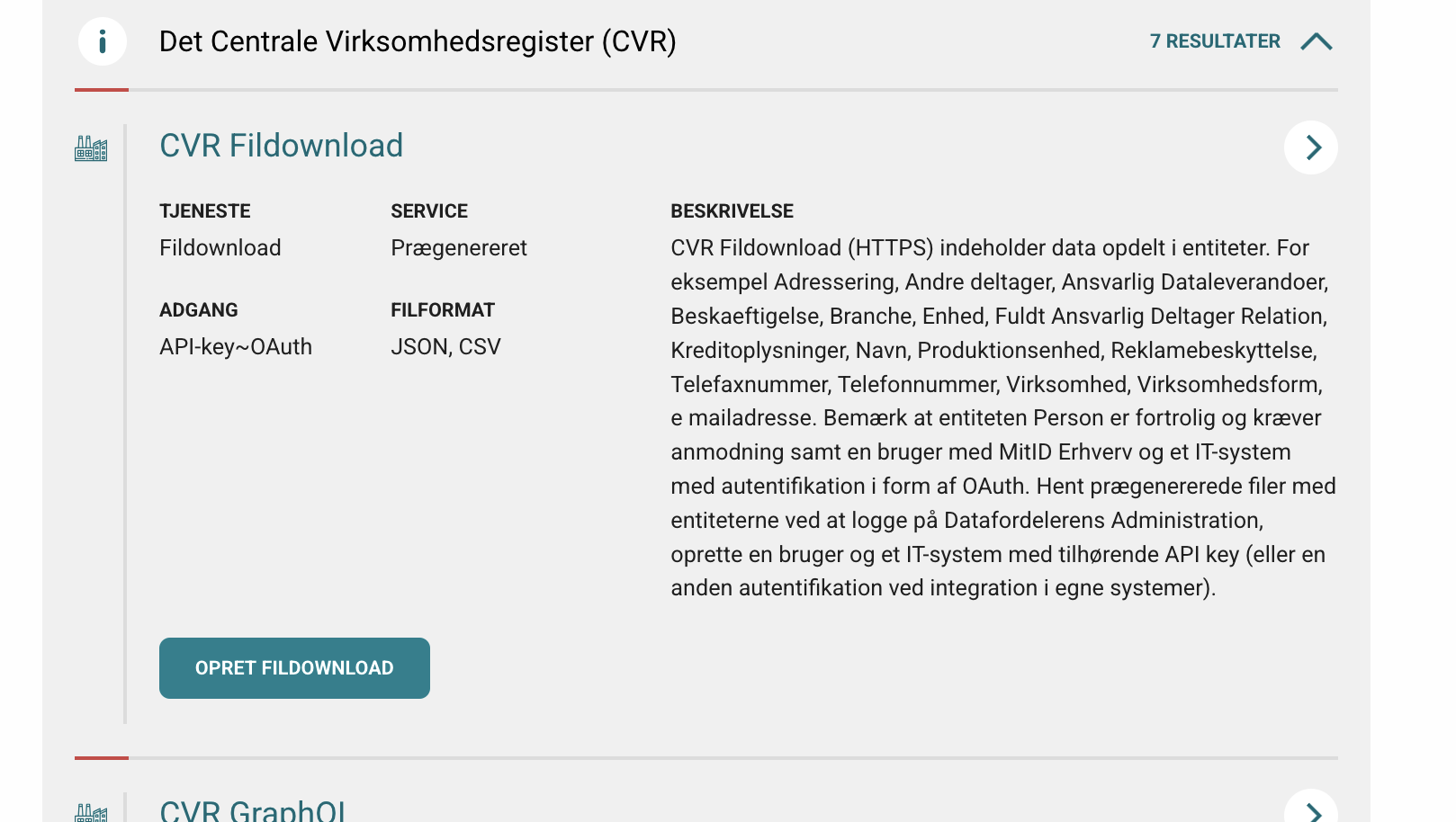
This opens a wizard with similar steps for most collections.
- Choose the entity you want from the selected collection.
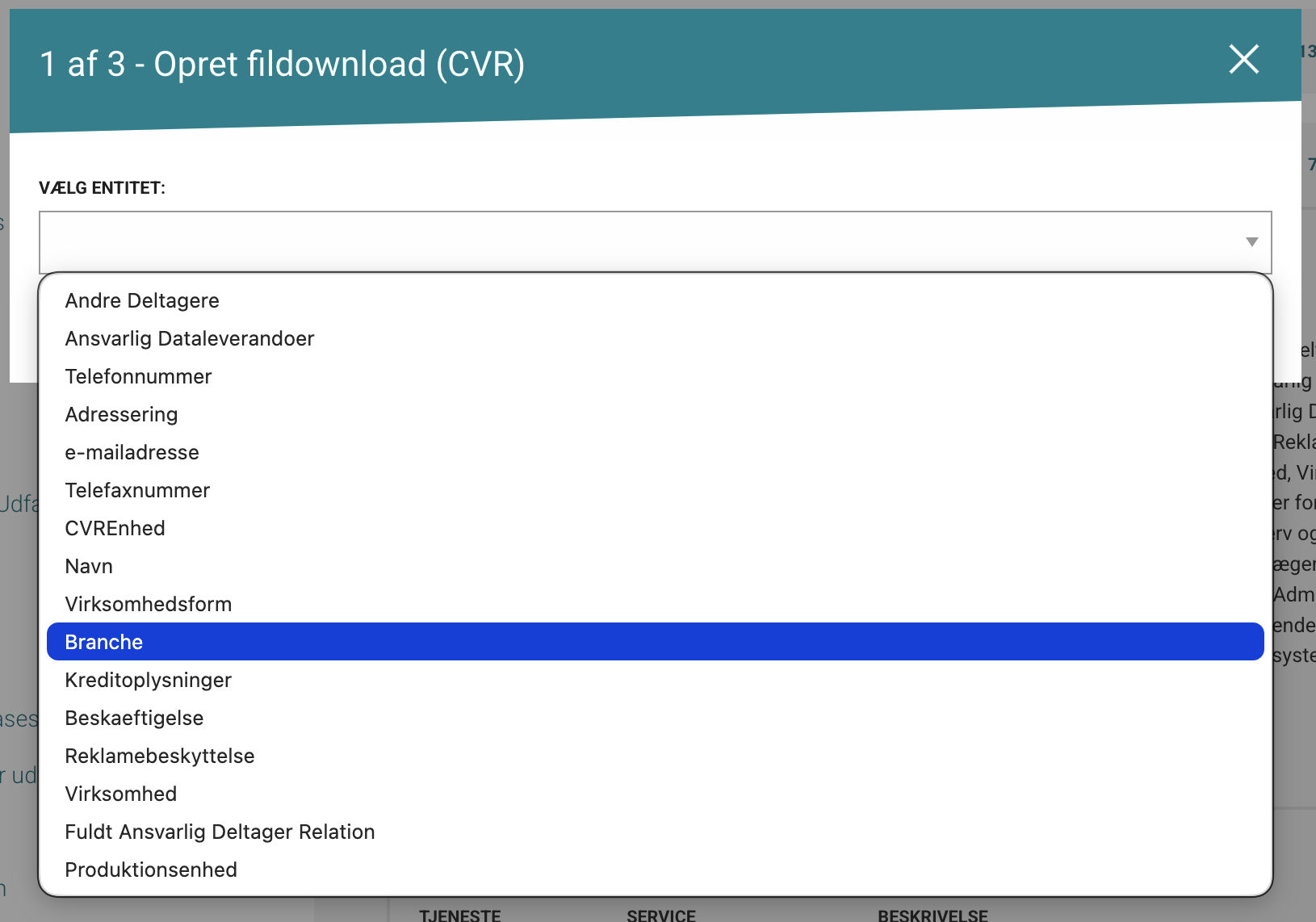
In this example, the selected entity is business activity type (branche).
- Choose spatial and temporal restrictions (if available).
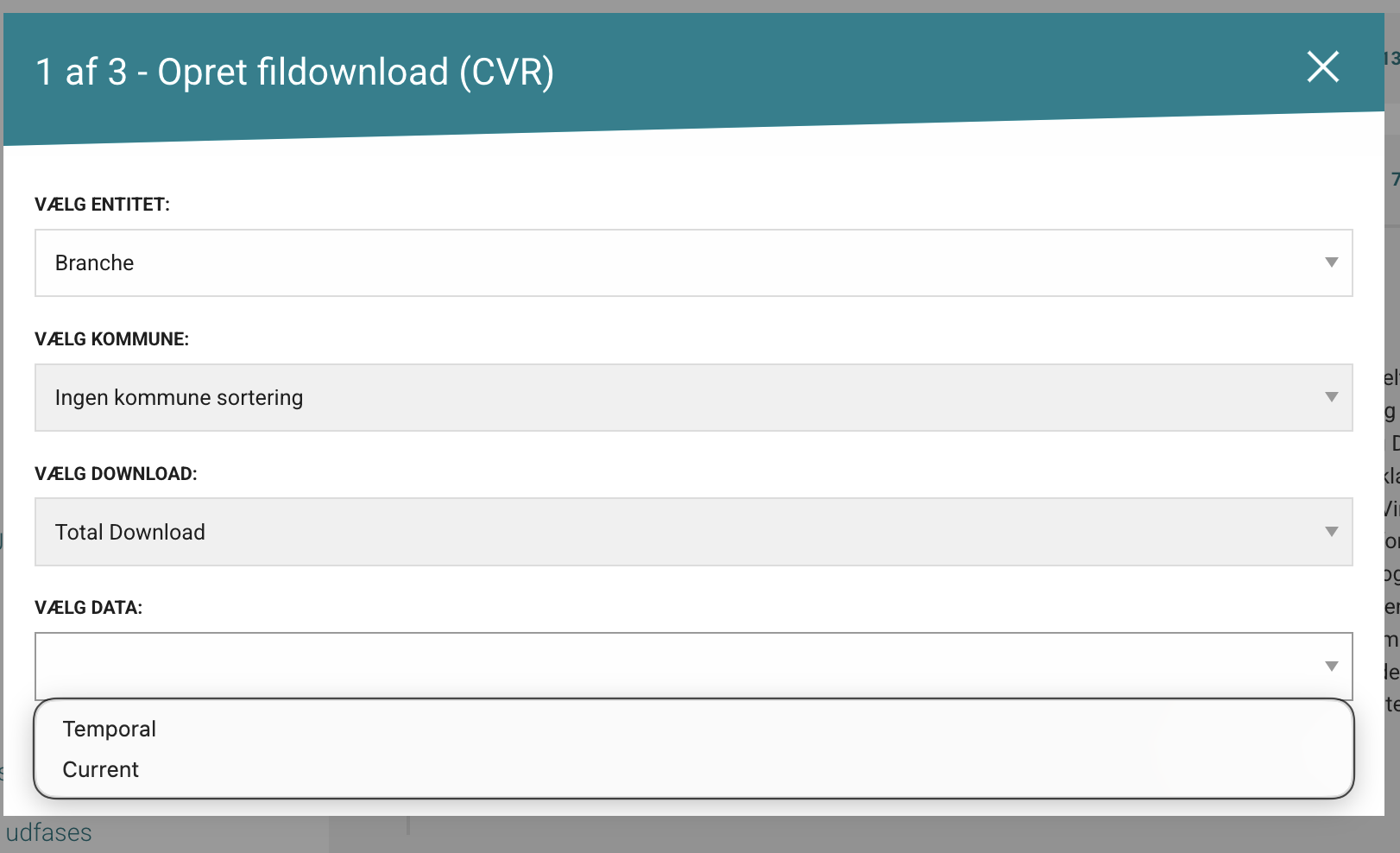
In some collections:
- municipality filtering is not available
- only full data downloads are available (not change datasets)
- only Current mode is available
Where available, temporal depth options usually map to:
- Current: current state only
- Temporal: historical valid-time records
- Bitemporal: historical valid-time plus historical registration state
- Choose output format (typically CSV, JSON, or GPKG).
- For tabular analysis: choose CSV (compact and broadly compatible)
- For spatial layers: choose GPKG
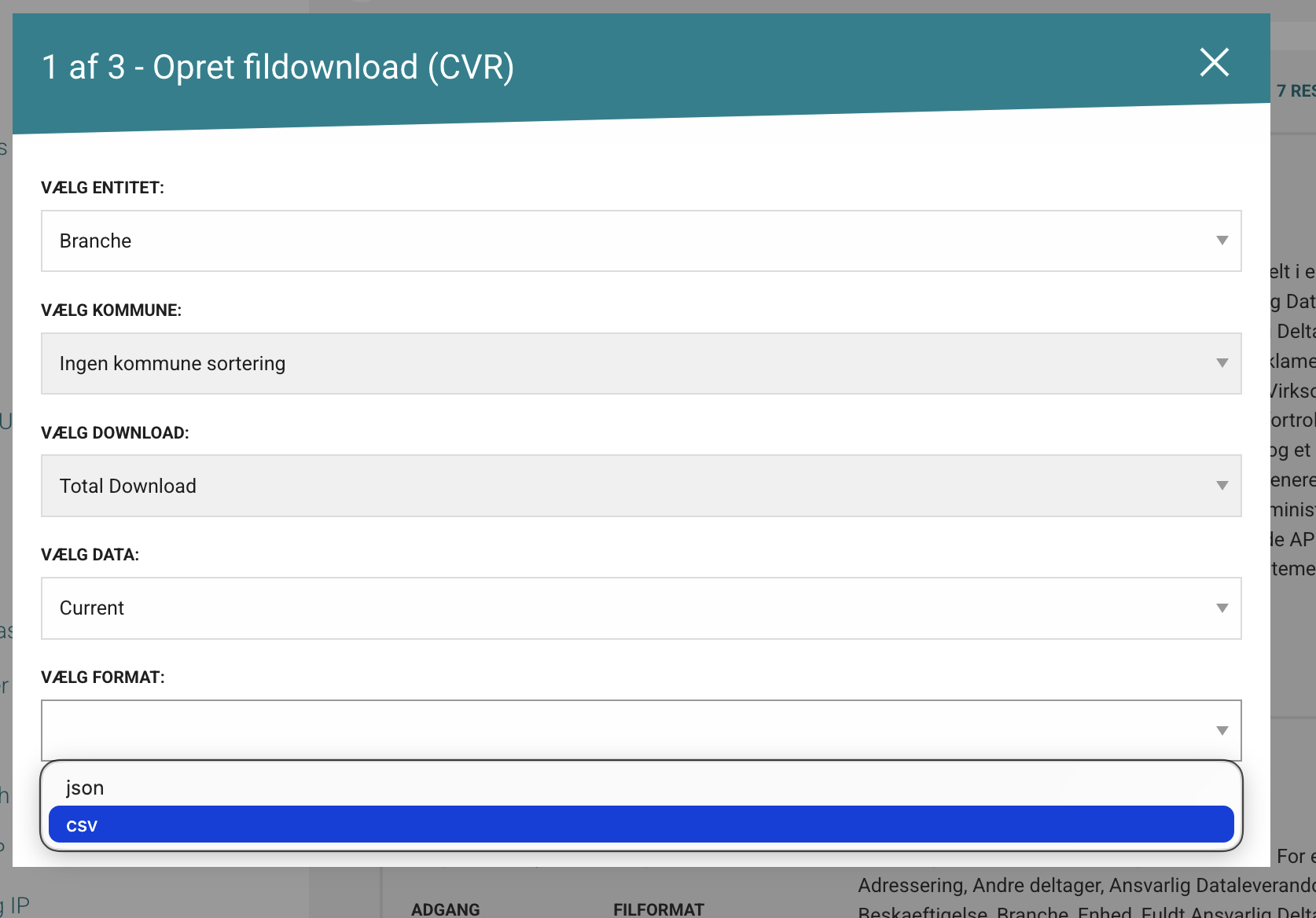
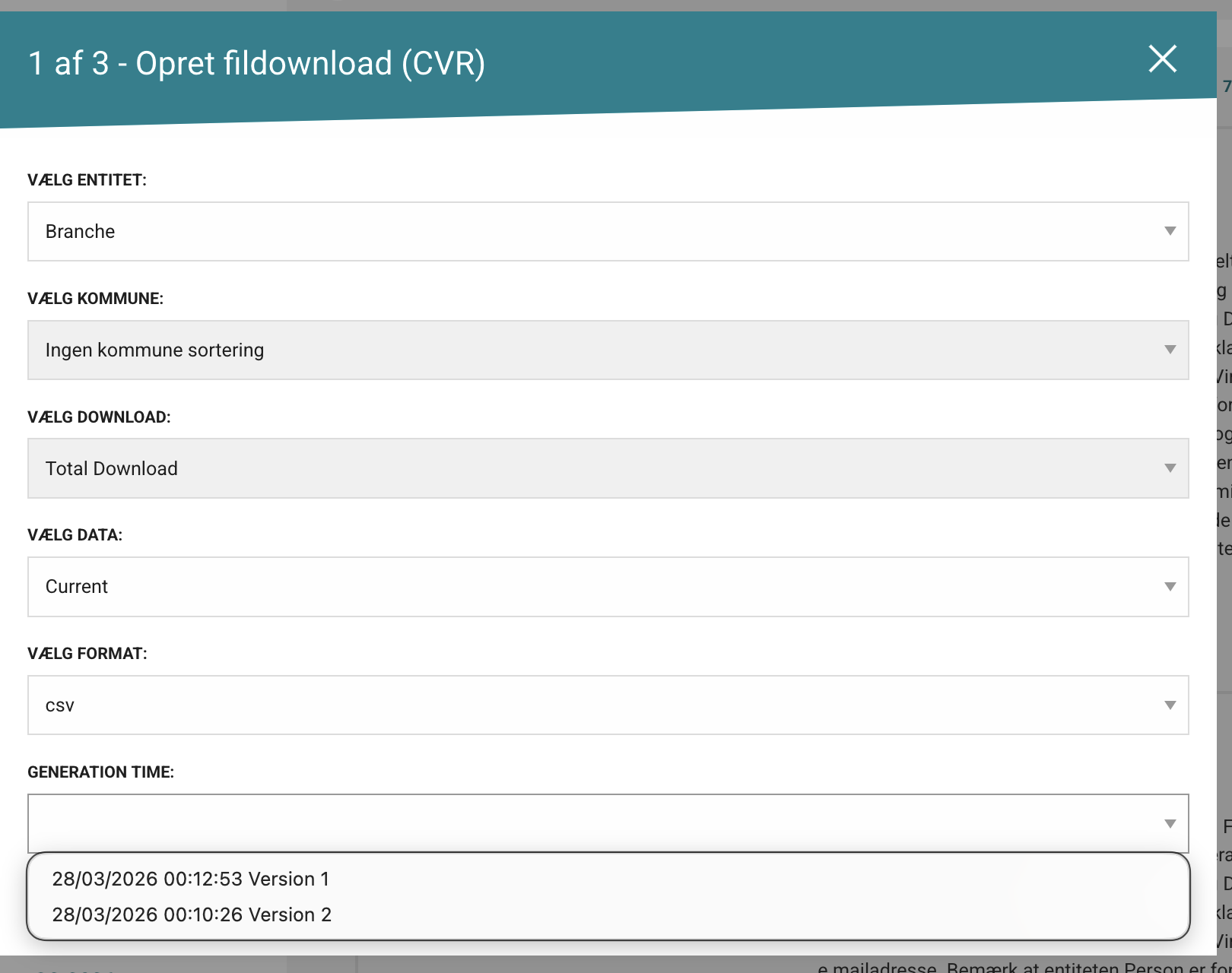
- Choose creation/version options.
Some collections expose multiple versions with slightly different content. In many cases, version 1 aligns with public documentation, but this can change over time.
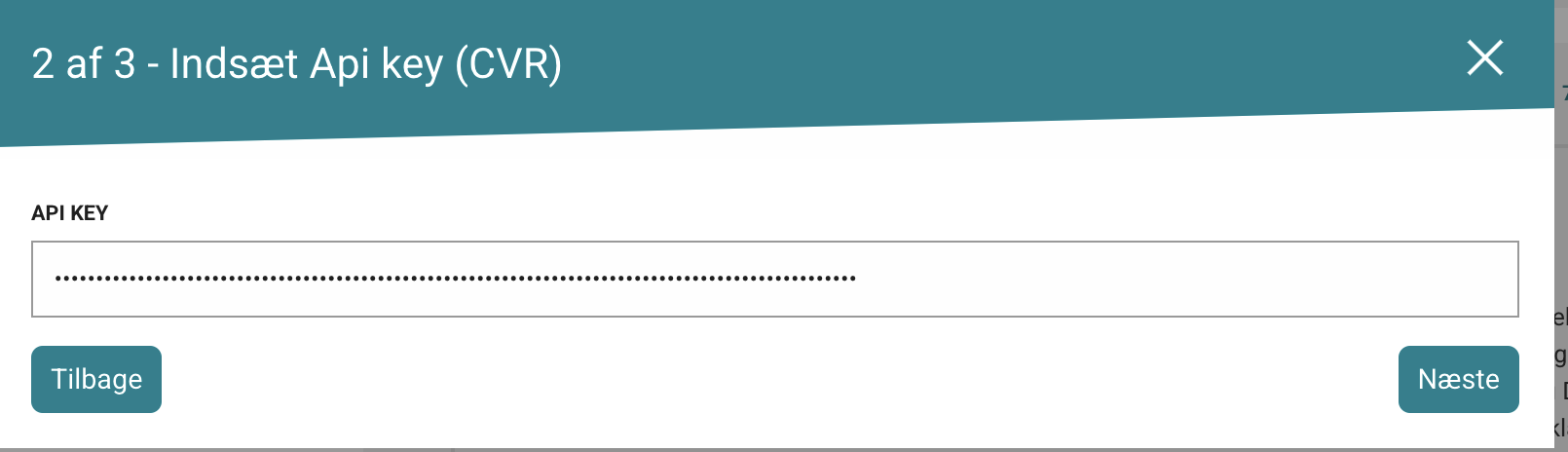
- Enter your API key.
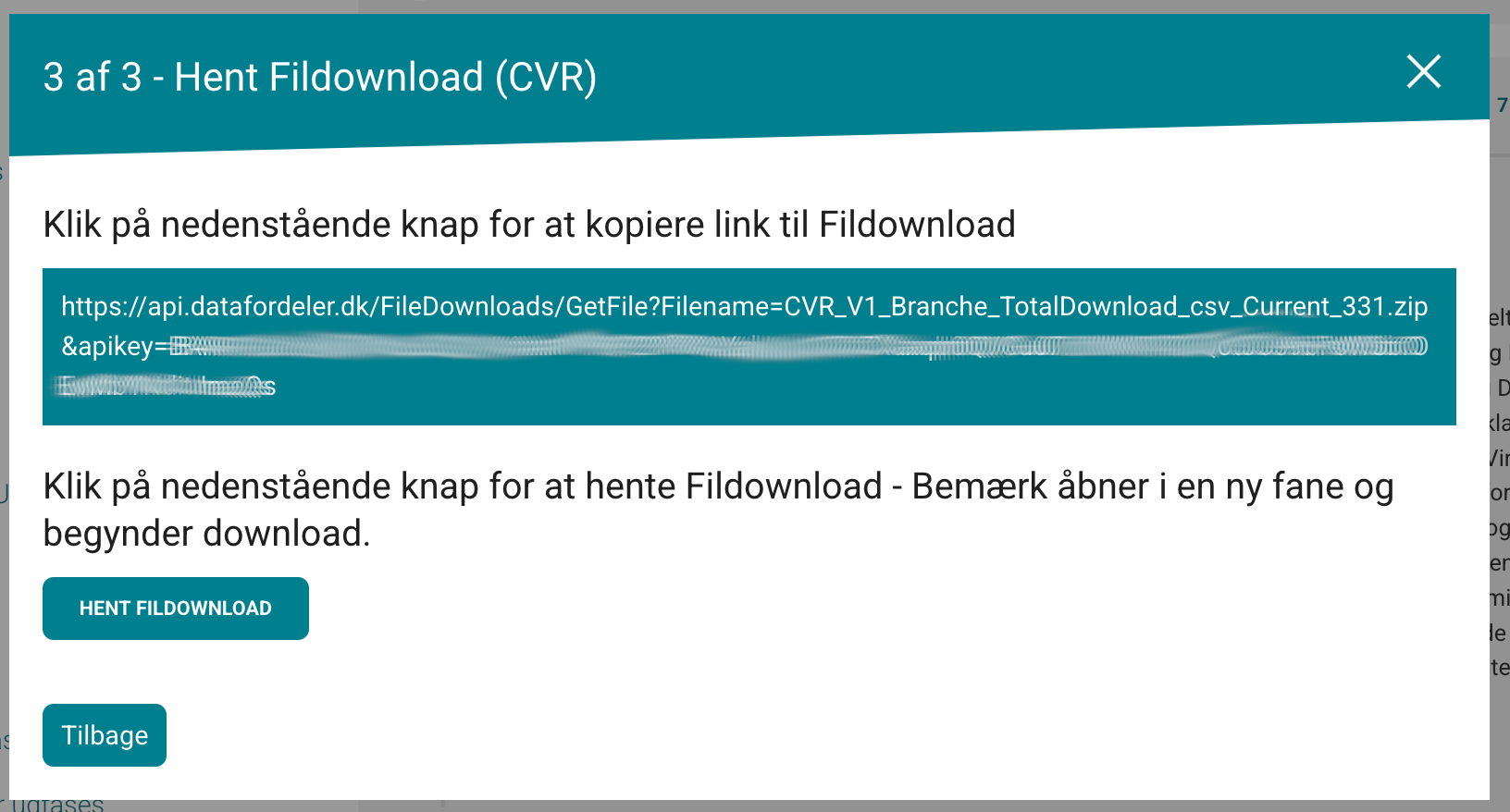
- On the final page, either:
- save the download link for reuse (typically returns the current dataset for that setup), or
- click HENT FILDOWNLOAD to download immediately.
AI/Human workflow recommendation
For normalized datasets (for example CVR), file download usually returns one entity per package/table. Plan for join/reconstruction after download.
Recommended sequence:
- Declare temporal mode (current, temporal, or bitemporal)
- Choose entity set and output format
- Download all required entities
- Reconstruct analysis model with explicit join keys
- Report join coverage and any dropped/unmatched records